ID Cards
https://owlfaceid.nanqing.cloud/attendance/id-cards
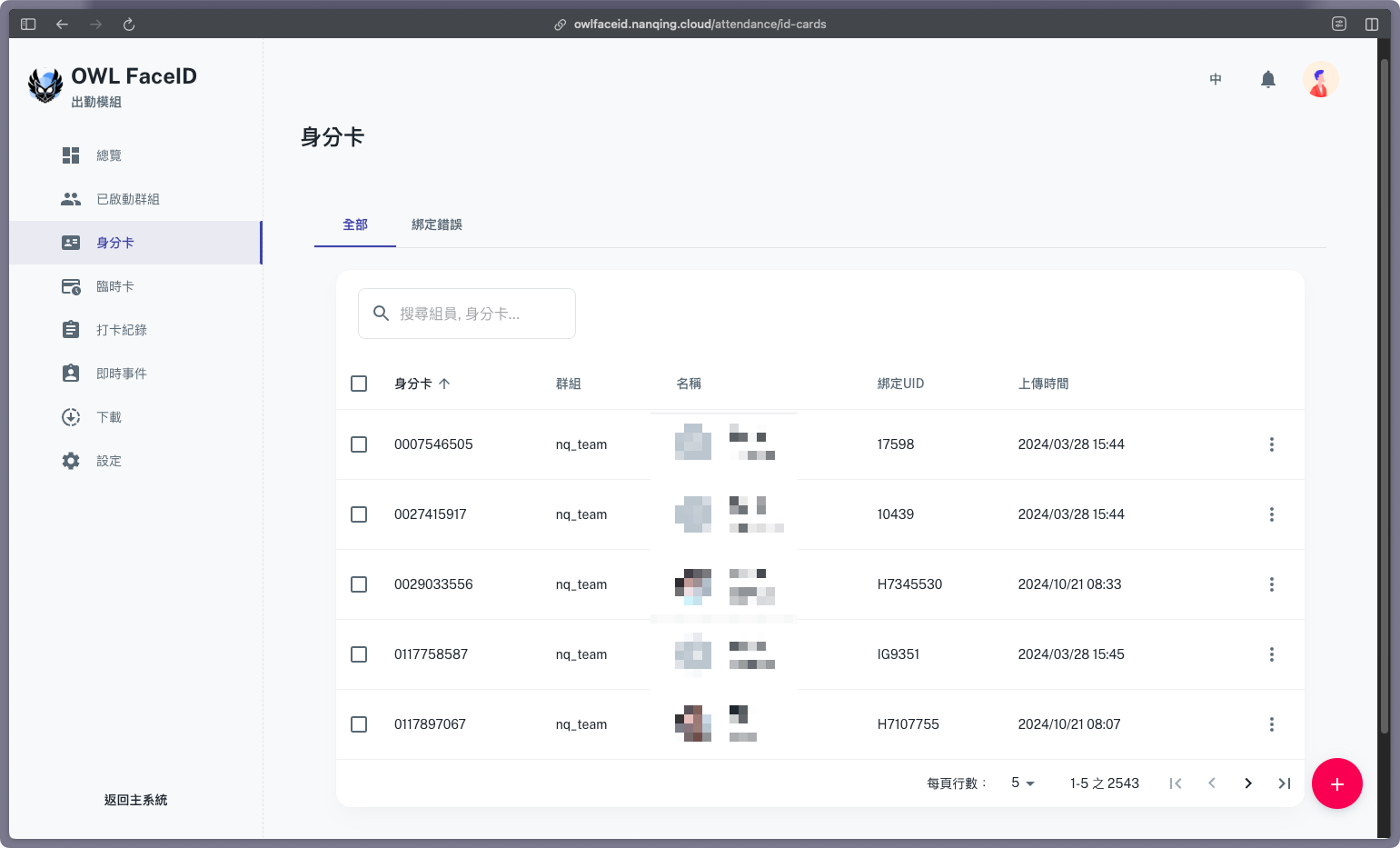
Overview
The ID Cards page enables administrators to manage ID cards that can be used in EasyClockIn when the clock in method is Face recognition + ID card.
Steps to Create a ID Card
-
Hover over the red “+” button in the bottom-right corner and select Create a ID Card.
-
Provide the details of the member, and the system will automatically find the member with the UID.
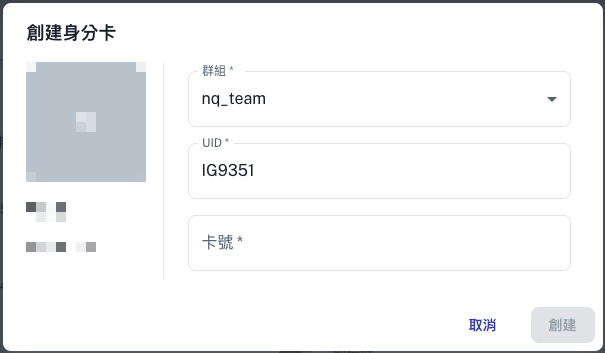
-
Save the ID card, and it will be added to the list.
Batch Import ID Cards
-
Hover over the red “+” button in the bottom-right corner and select Batch Upload.
-
Follow the instructions provided in the template to upload a CSV file containing the ID card details.
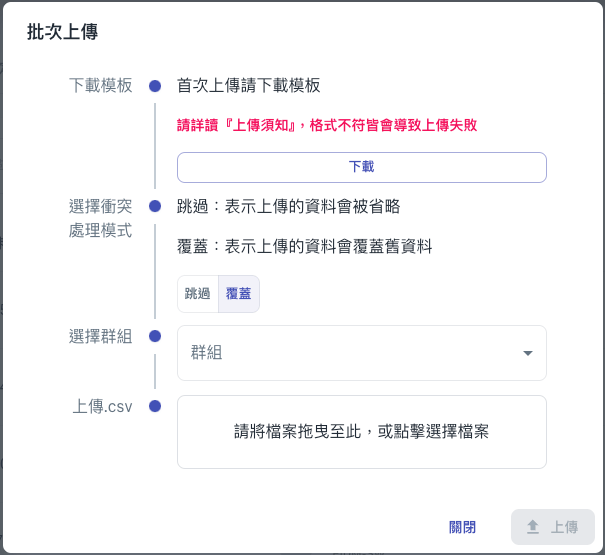
-
After uploading, the system will generate a report showing the success and failure results of the upload. The ID cards will then be added to the list.
Managing a ID Card
- To access the options for managing a specific ID Card, click the three-dot menu next to the ID Card.
- Edit: Modify the ID Card details.
- Delete: Remove the ID Card (please note that this action is irreversible).