Temporary Cards
Overview
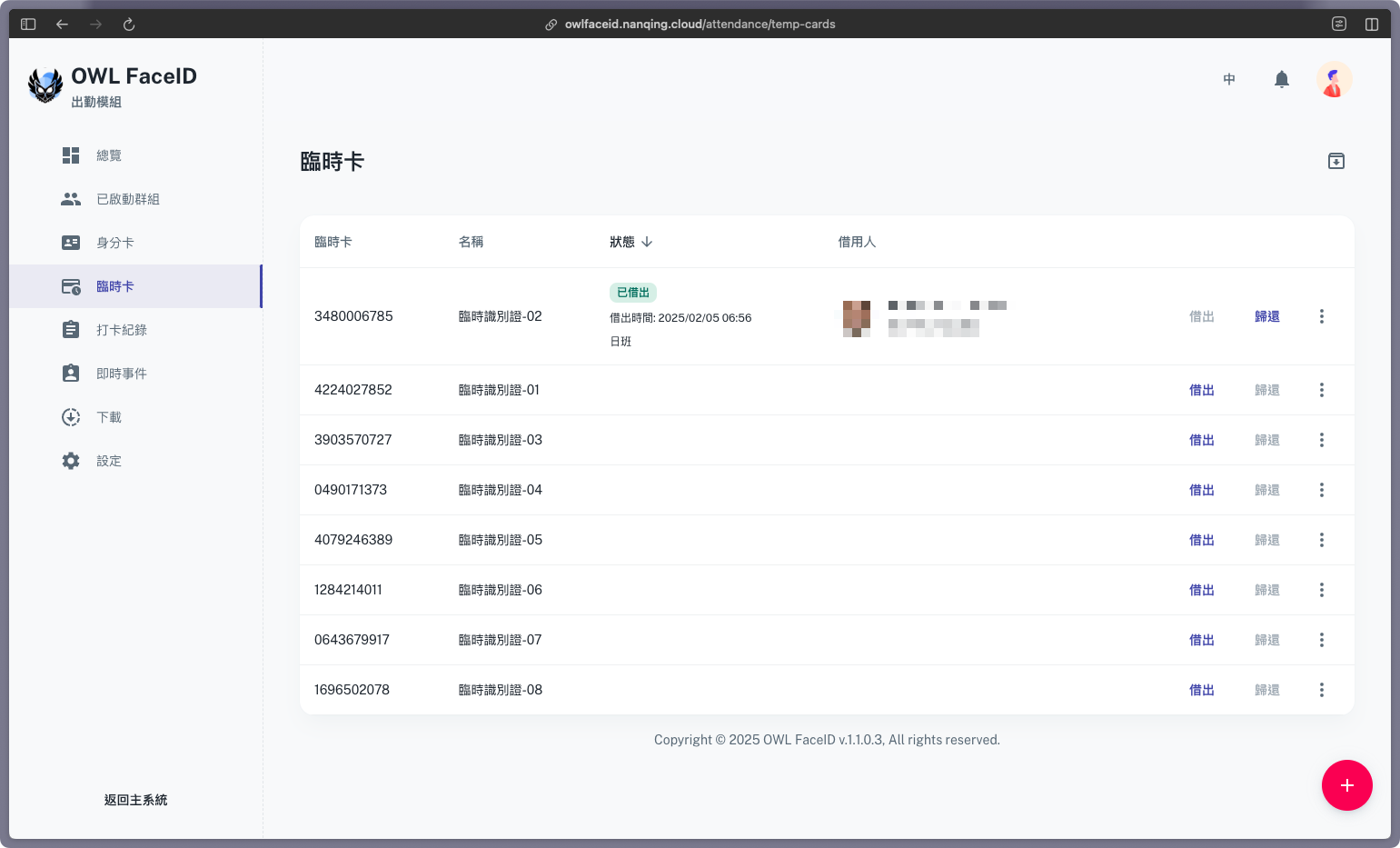
The Temporary Cards page allows administrators to manage temporary cards for short-term access, which can be used in EasyClockIn when the clock in method is Face recognition + ID card.
Note: Only system members can use temporary cards.
Steps to Create a Temporary Card
-
Click the red “+” button in the bottom-right corner.
-
Enter the card details, including the Card Number, Name, and Description (optional).

-
Save the temporary card, and it will be added to the list.
Note: Only administrators can create temporary cards.
Managing a Temporary Card
- Click the three-dot menu next to a card to access the following options:
- Borrowing Record: View the borrowing history of the temporary card.
- Edit: Modify the temporary card details.
- Delete: Remove a temporary card (this action is irreversible).
Note: If a temporary card is currently borrowed, the Edit and Delete options will be disabled.
Lend & Return a Temporary Card
-
To lend a temporary card, click the Lend button in the card row and select Lend. Provide the Borrower UID and Borrower time range details, then click Lend.

-
To return a temporary card, click the Return button in the card row, and the system will automatically fill in the Return time.
Temporary Card and Borrowed Card Archive
- To archive a temporary card, click the three-dot menu next to it and select Delete. (Please note that this action is irreversible.)
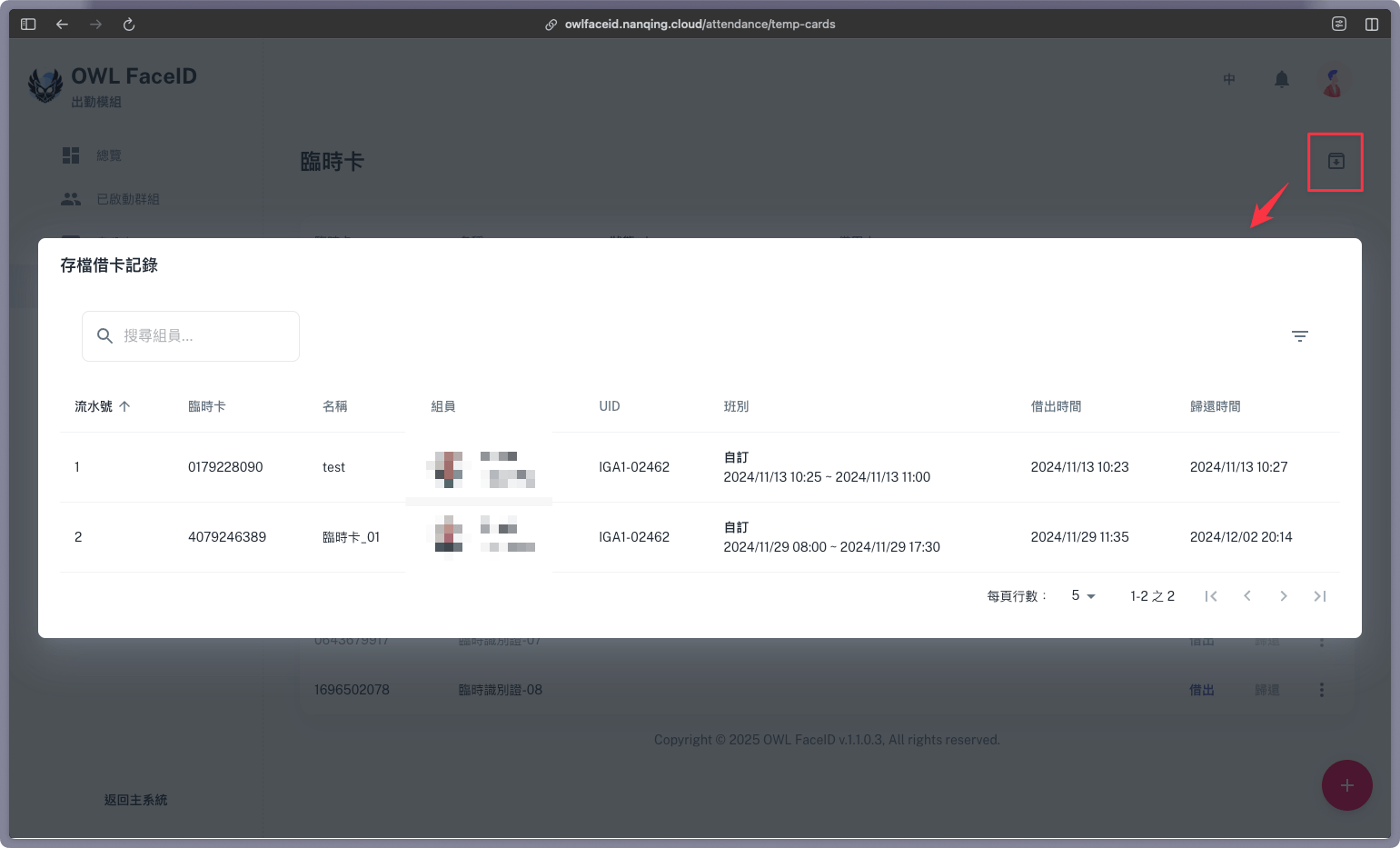
- To view the borrowing history of archived cards, click the icon located in the upper right corner.
- Administrators can access this history by viewing the borrower’s UID and the return time.